Introduction
Firebase is one of the most popular backend platforms for building web and mobile apps, offering authentication, databases, hosting, and more, all backed by Google Cloud. To connect your app to Firebase, you need a Firebase configuration that includes an API key, along with a few other identifiers like your Project ID and App ID. Unlike some other services, a Firebase API key isn't meant to be kept fully secret — it simply identifies your Firebase project to Google's servers, with actual data protection handled separately through Firebase Security Rules. This post walks through the common points of confusion around Firebase API keys and provides a clear, step-by-step guide to finding yours.
The Problem
Developers setting up Firebase for the first time often run into a few points of confusion:
- Misunderstanding what the API key protects: Many developers assume the Firebase API key needs to be treated like a traditional secret key, when in reality it mainly identifies your project, with actual data security enforced through Firebase Security Rules instead.
- Not knowing where to find it: Since the API key is bundled inside a broader configuration object or file, first-time users sometimes struggle to locate it within the Firebase console.
- Confusion between platforms: Firebase generates separate configuration files for Web, Android, and iOS apps, and developers aren't always sure which one they need for their specific project.
- Mismatched keys and projects: An error can occur if the API key doesn't match the Project ID listed in the app's configuration, often caused by using an outdated config file after project changes.
- Overlooking API restrictions: Firebase automatically creates and restricts API keys to a set of required Firebase services, but developers who create custom keys manually in Google Cloud Console may forget to apply similar restrictions, increasing the risk of misuse.
- Confusing Firebase and Google Cloud consoles: Since a Firebase project is technically a Google Cloud project with Firebase features enabled, some settings and API key management options exist in the Google Cloud Console rather than the Firebase console itself.
Without a clear understanding of these points, developers can end up confused about where to find their key, or unsure about how much protection it actually needs.
The Solution
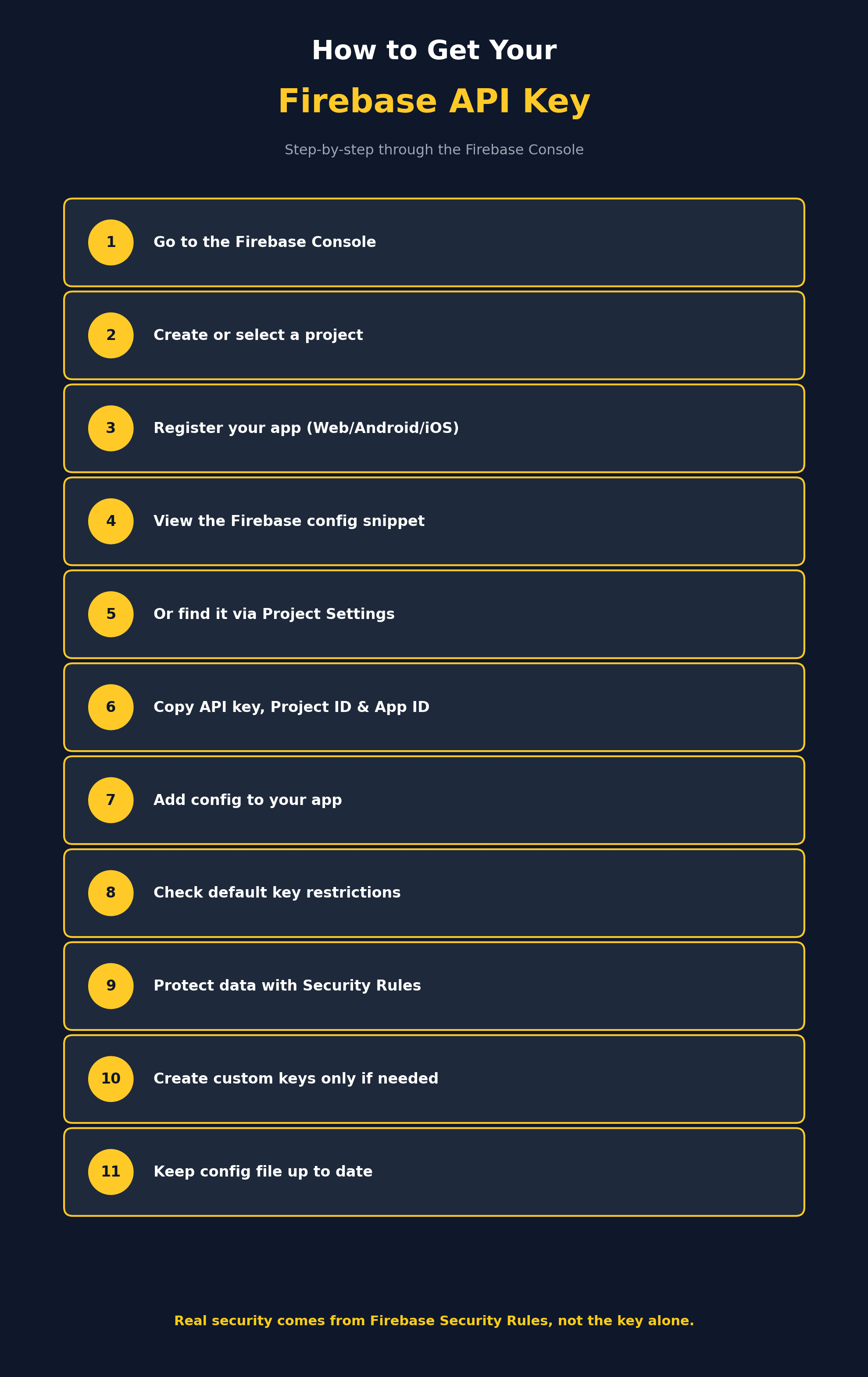
Here's a clear, step-by-step process to find or generate your Firebase API key:
- Go to the Firebase Console: Visit the Firebase console and sign in with your Google account.
- Create a new project (or select an existing one): Click "Add project" (or "Get started with a Firebase project"), give it a name, and follow the setup steps, including the optional Google Analytics configuration.
- Register your app: From the project overview page, choose the platform icon for your app — Web, Android, or iOS — and register your app with a nickname.
- Access your Firebase config: After registering your app, Firebase will display a configuration snippet (for Web) or a config file (google-services.json for Android, GoogleService-Info.plist for iOS) containing your API key along with other required identifiers.
- Or find it later via Project Settings: If you need to access your config again later, go to Project Settings (the gear icon near "Project Overview"), scroll to the "Your apps" section, and select your app to view its configuration details.
- Copy your API key and related values: Along with the API key, note your Project ID and App ID, since all three are typically required together to properly initialize Firebase in your app.
- Add the config to your app: Paste the Web config snippet into your app's code, or place the downloaded google-services.json or GoogleService-Info.plist file into the appropriate directory in your Android or iOS project.
- Understand default key restrictions: Firebase automatically restricts auto-created API keys (Browser key, Android key, or iOS key) to only the specific Firebase-related APIs they need, which you can review under APIs & Services > Credentials in the Google Cloud Console.
- Protect your data with Security Rules: Since the Firebase API key itself isn't meant to fully restrict access, make sure your actual data protection comes from properly configured Firebase Security Rules for your database and storage.
- Create custom keys only if needed: For advanced use cases like development or debugging environments, you can create additional API keys manually in the Google Cloud Console, but be sure to apply appropriate API restrictions to any key you create yourself.
- Keep your config file up to date: If you ever see an error about a mismatched API key and Project ID, download a fresh copy of your app's Firebase config file from the console and replace the outdated one in your project.
Following these steps ensures you can correctly locate your Firebase API key and understand how it fits into your app's overall security setup.
Conclusion
Finding your Firebase API key is a simple process once you know it's part of a broader configuration bundled together with your Project ID and App ID inside the Firebase console. Unlike many traditional API keys, the Firebase API key is designed to be public-facing, with real data protection coming from Firebase Security Rules rather than the key itself. By registering your app, locating your configuration through Project Settings, and understanding how default key restrictions work, you can confidently connect your app to Firebase and keep your project properly secured.