Introduction
AI coding tools have become a regular part of how developers write, debug, and review code inside VS Code. Today, extensions like GitHub Copilot, Claude Code, Cursor-style AI chat, and Codeium bring AI assistance directly into the editor, offering code suggestions, auto-completion, error detection, and even full function generation based on simple prompts. For developers, learning how to use these tools effectively can significantly speed up development while reducing repetitive coding work. This post walks through the common challenges developers face when adopting AI coding tools, and how to set them up and use them effectively inside VS Code.
The Problem
Developers new to AI coding tools often face a few common hurdles:
- Overwhelming number of options: With several AI coding extensions available for VS Code, it can be difficult to know which one fits a specific workflow or programming language.
- Unclear setup process: Installing and properly configuring an AI coding extension, including authentication and API keys, can feel confusing for first-time users.
- Over-reliance on suggestions: Without understanding how to review and verify AI-generated code, developers risk accepting incorrect or insecure code suggestions without realizing it.
- Ineffective prompting: Simply typing vague requests often leads to generic or unhelpful code suggestions, when more specific prompts could produce much better results.
- Context limitations: AI tools sometimes struggle to understand a project's broader context, leading to suggestions that don't quite fit existing code patterns or architecture.
- Underusing available features: Many developers only use basic autocomplete and miss out on more powerful features like inline chat, code explanation, refactoring assistance, and test generation.
Without a clear approach, developers can end up either underusing these tools or relying on them too heavily without proper review, both of which limit their real benefit.
The Solution
Here's how to effectively set up and use AI coding tools inside VS Code:
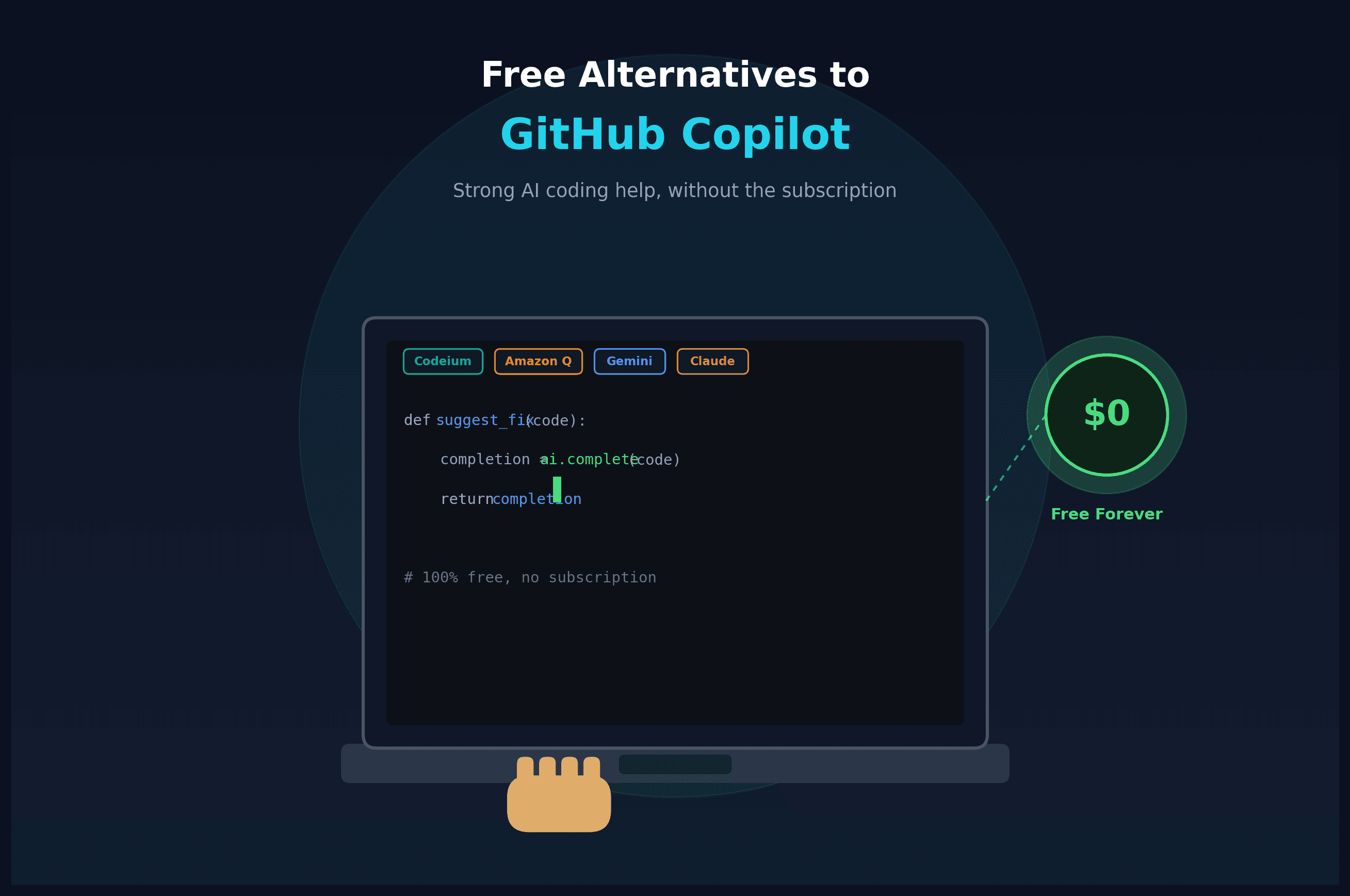
- Choose the right AI extension: Popular options include GitHub Copilot (strong general-purpose suggestions), Claude Code (deep reasoning and multi-file editing), Codeium (free tier with broad language support), and Amazon Q Developer (AWS-focused projects). Choose based on your budget, language needs, and whether you want a free or paid option.
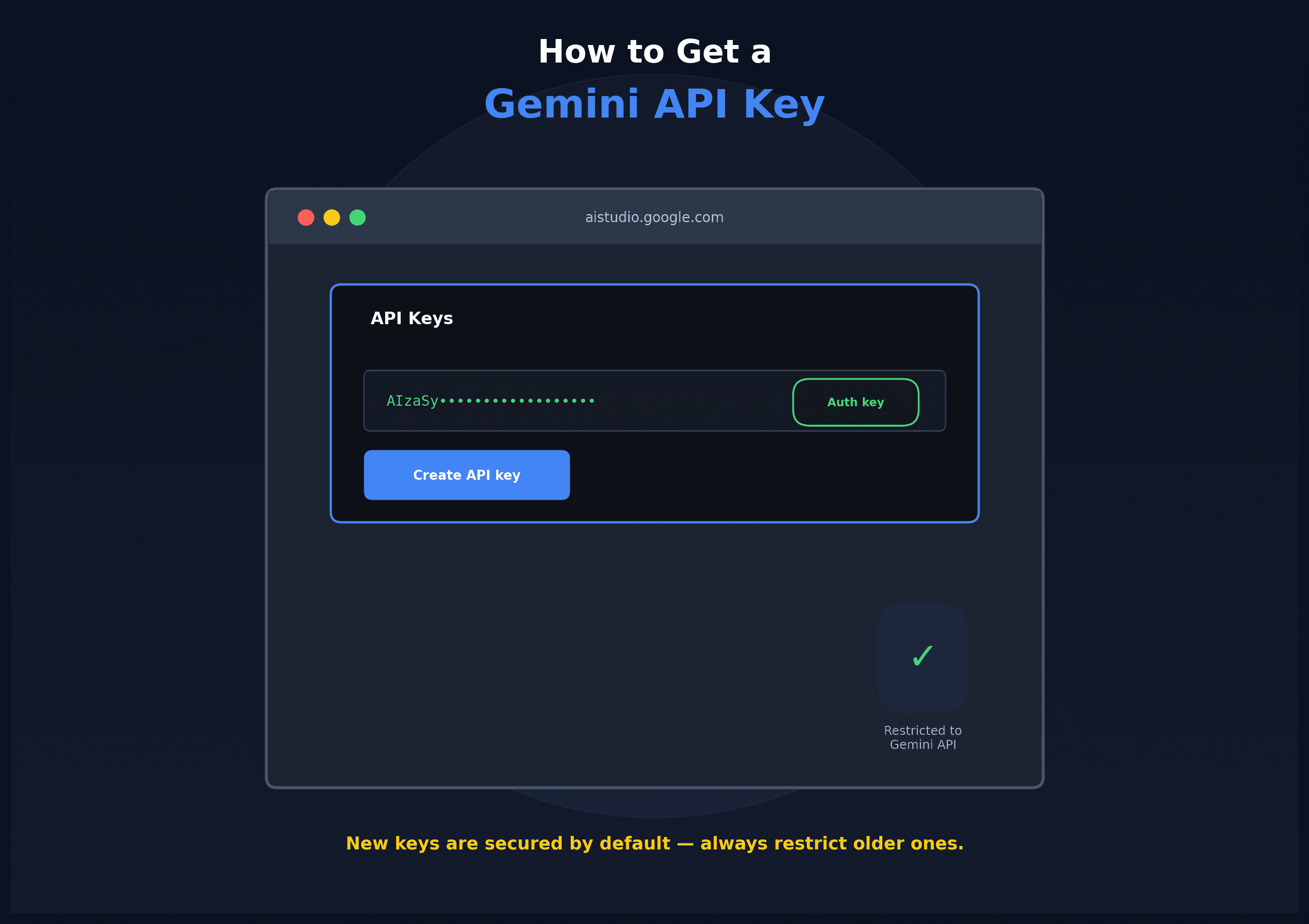
- Install and authenticate properly: Most AI coding extensions can be installed directly from the VS Code Extensions marketplace. After installation, sign in with the required account (GitHub, Anthropic, or the provider's own login) to activate the extension.
- Use inline code suggestions: Once active, most tools will automatically suggest code as you type. Reviewing and accepting suggestions with Tab (or the extension's specific shortcut) can speed up writing repetitive code, boilerplate, and common patterns.
- Leverage inline chat for specific tasks: Instead of only relying on autocomplete, use the extension's chat feature to ask for specific help, like "write a function to validate email addresses" or "explain what this function does," for more targeted results.
- Write clear, specific prompts: When asking an AI tool to generate or modify code, being specific about the language, framework, expected input/output, and edge cases leads to noticeably better suggestions than vague requests.
- Use AI for debugging and error explanation: Many AI coding tools can explain error messages, suggest fixes, and even walk through why a piece of code isn't working as expected, which can be especially helpful for beginners or unfamiliar codebases.
- Try AI-assisted refactoring: Beyond writing new code, AI tools can help refactor existing code for readability, performance, or to follow best practices, often with a simple prompt like "refactor this function to be more readable."
- Generate tests with AI assistance: Many AI coding tools can generate unit tests based on existing functions, helping improve test coverage without manually writing every test case from scratch.
- Always review AI-generated code: AI suggestions should be treated as a starting point, not a final answer. Reviewing for correctness, security, and alignment with your project's coding standards is essential before committing any AI-generated code.
- Combine AI assistance with your own expertise: The most effective use of AI coding tools comes from pairing their speed and pattern recognition with your own understanding of the project's architecture, business logic, and edge cases that the AI might not fully grasp.
By setting up the right tool and using it thoughtfully, developers can meaningfully speed up their workflow inside VS Code without sacrificing code quality or understanding.
Conclusion
AI coding tools have become a genuinely useful part of modern development inside VS Code, helping developers write code faster, debug more efficiently, and reduce time spent on repetitive tasks. The key to getting real value from these tools lies in choosing the right extension, writing clear prompts, and always reviewing AI-generated suggestions before relying on them. Used thoughtfully, AI coding assistants can become a powerful addition to any developer's workflow, without replacing the judgment and expertise that only a human developer can bring.