Introduction
n8n is a popular workflow automation platform that lets developers and businesses connect different apps and services together without writing complex custom code. One of the most useful integrations is connecting the YouTube API to n8n, allowing you to automate tasks like fetching video details, managing playlists, uploading videos, or tracking channel activity as part of a larger workflow. While n8n's YouTube node makes this integration possible, the OAuth2 setup through Google Cloud Console can trip up first-time users. This post covers the common issues developers face when connecting YouTube to n8n, and walks through the correct setup process step by step.
The Problem
Developers setting up the YouTube API in n8n often run into a few recurring issues:
- OAuth2 setup confusion: Since YouTube automation typically requires OAuth2 authentication rather than a simple API key, users unfamiliar with Google Cloud Console often get stuck creating the correct credentials.
- Redirect URI mismatches: A common error occurs when the OAuth redirect URL in n8n doesn't exactly match what's configured in Google Cloud Console, leading to failed authentication attempts.
- Unverified app warnings: Google often blocks access with an "app not verified" error when the OAuth consent screen hasn't been properly configured or the testing user hasn't been added.
- Missing or incorrect scopes: Without enabling the right YouTube Data API scopes in Google Cloud Console, certain actions like uploading videos or managing playlists may fail even after successful authentication.
- Self-hosted vs. cloud differences: n8n's managed OAuth2 option isn't available for self-hosted instances, meaning self-hosted users need to set up their own custom Google Cloud credentials rather than using a simpler built-in connection.
- Confusing credential types: With multiple Google-related credential options available in n8n, it's not always clear which one is meant for YouTube-specific automation.
Without a clear step-by-step process, this setup can lead to repeated authentication errors and wasted troubleshooting time.
The Solution
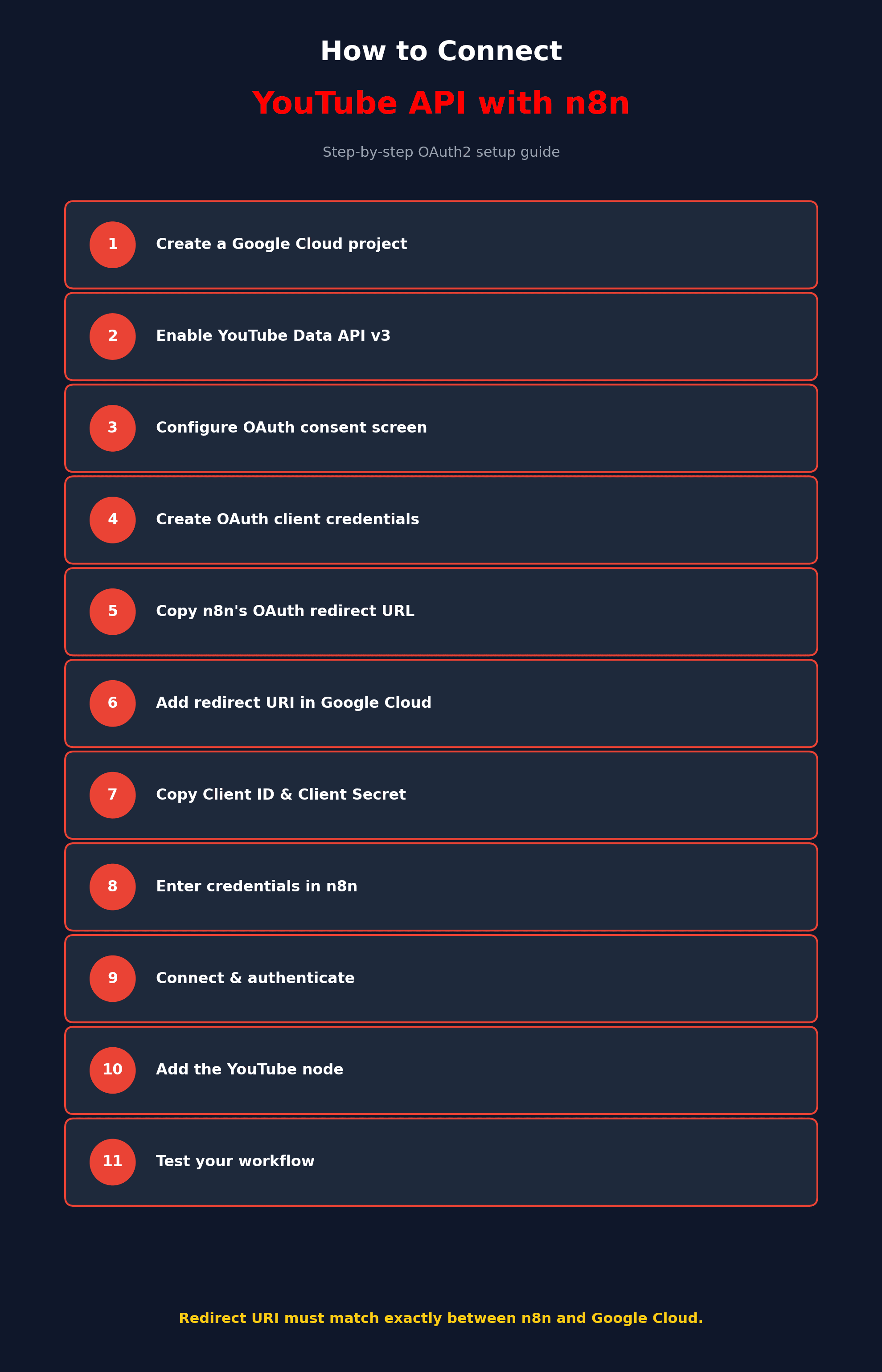
Here's how to correctly connect the YouTube API to n8n:
- Create a Google Cloud Console project: Go to the Google Cloud Console and create a new project (or select an existing one) that will hold your YouTube API credentials.
- Enable the YouTube Data API: In the API Library, search for "YouTube Data API v3" and enable it for your selected project, since this is the API that powers YouTube automation actions.
- Configure the OAuth consent screen: Under APIs & Services, set up your OAuth consent screen with the required app information. If your app is still in "Testing" mode, make sure to add your own Google account as a test user, or you'll run into "app not verified" errors.
- Create OAuth client credentials: Go to Credentials, click "Create Credentials," and select "OAuth client ID." Choose "Web application" as the application type, since this is required for n8n's OAuth flow.
- Copy your n8n OAuth redirect URL: In n8n, when creating your YouTube credential, copy the OAuth Redirect URL shown in the credential panel. If you're self-hosting locally, this will typically look like http://localhost:5678/rest/oauth2-credential/callback.
- Add the redirect URI in Google Cloud Console: Paste the exact redirect URL from n8n into the "Authorized redirect URIs" field in your Google OAuth client settings, making sure the protocol and port match exactly.
- Copy your Client ID and Client Secret: Once your OAuth client is created, copy both the Client ID and Client Secret from Google Cloud Console.
- Enter credentials in n8n: In your n8n YouTube credential, paste in the Client ID and Client Secret you just copied, then save the credential.
- Connect and authenticate: Click to sign in or connect the credential in n8n. This should open a Google authentication popup where you can log in and grant the required permissions.
- Add the YouTube node to your workflow: Once your credential is connected, add the YouTube node to your n8n workflow and select the credential you just created to start automating actions like fetching videos, managing playlists, or uploading content.
- Test your workflow: Run a simple test action, such as fetching channel details, to confirm the connection is working correctly before building out more complex automations.
- Troubleshoot common errors: If you see a redirect URI mismatch error, double-check that the URLs match exactly between n8n and Google Cloud Console. If you see an "unverified app" error, confirm your Google account has been added as a test user in the OAuth consent screen settings.
Following these steps carefully helps avoid the most common authentication issues developers run into when connecting YouTube to n8n.
Conclusion
Connecting the YouTube API to n8n opens up powerful automation possibilities, from tracking new video uploads to managing playlists and channel data as part of a larger workflow. While the OAuth2 setup through Google Cloud Console requires a bit more care than a simple API key, following the steps above — creating the right credentials, matching redirect URIs exactly, and properly configuring the OAuth consent screen — will get your YouTube integration working smoothly in n8n.