Introduction
The WhatsApp Cloud API, hosted by Meta, allows businesses and developers to send and receive WhatsApp messages programmatically, without managing their own servers. It's widely used for order notifications, customer support automation, appointment reminders, and chatbot integrations. To use the API, you first need an access token, and Meta offers two types: a temporary token for quick testing, and a permanent token meant for production use. Understanding the difference between these, along with the overall setup process, can save developers a lot of early confusion. This post breaks down the common challenges and walks through exactly how to get your WhatsApp Cloud API token.
The Problem
Developers setting up the WhatsApp Cloud API for the first time often run into a few common points of confusion:
- Confusing account requirements: Setting up WhatsApp Cloud API requires both a Meta developer account and a Meta Business Portfolio, and first-time users aren't always clear on how these two pieces connect.
- Temporary tokens expiring quickly: The default access token generated during initial setup expires within 24 hours, which frequently confuses developers who then wonder why their integration suddenly stops working.
- Not knowing how to get a permanent token: Many tutorials only cover the temporary token step, leaving developers unsure how to generate a long-lived token suitable for actual production use.
- Confusing System User setup: Creating a permanent token requires setting up a System User inside Meta Business Suite, a process that isn't always intuitive for developers unfamiliar with Meta's business tools.
- Sandbox limitations: The default test setup only allows messaging pre-verified phone numbers, which can confuse developers expecting to message any number right away.
- Business verification requirements: Without completing Meta's business verification process, accounts are limited to a small number of conversations per day, which can unexpectedly block scaling plans.
- Rate limits and messaging tiers: Developers aren't always aware that messaging limits increase gradually based on account verification and usage history, which can affect how quickly a new integration can scale.
Without a clear understanding of this process, developers can end up with a working test setup that suddenly breaks once the temporary token expires, or a limited setup that isn't ready for real business use.
The Solution
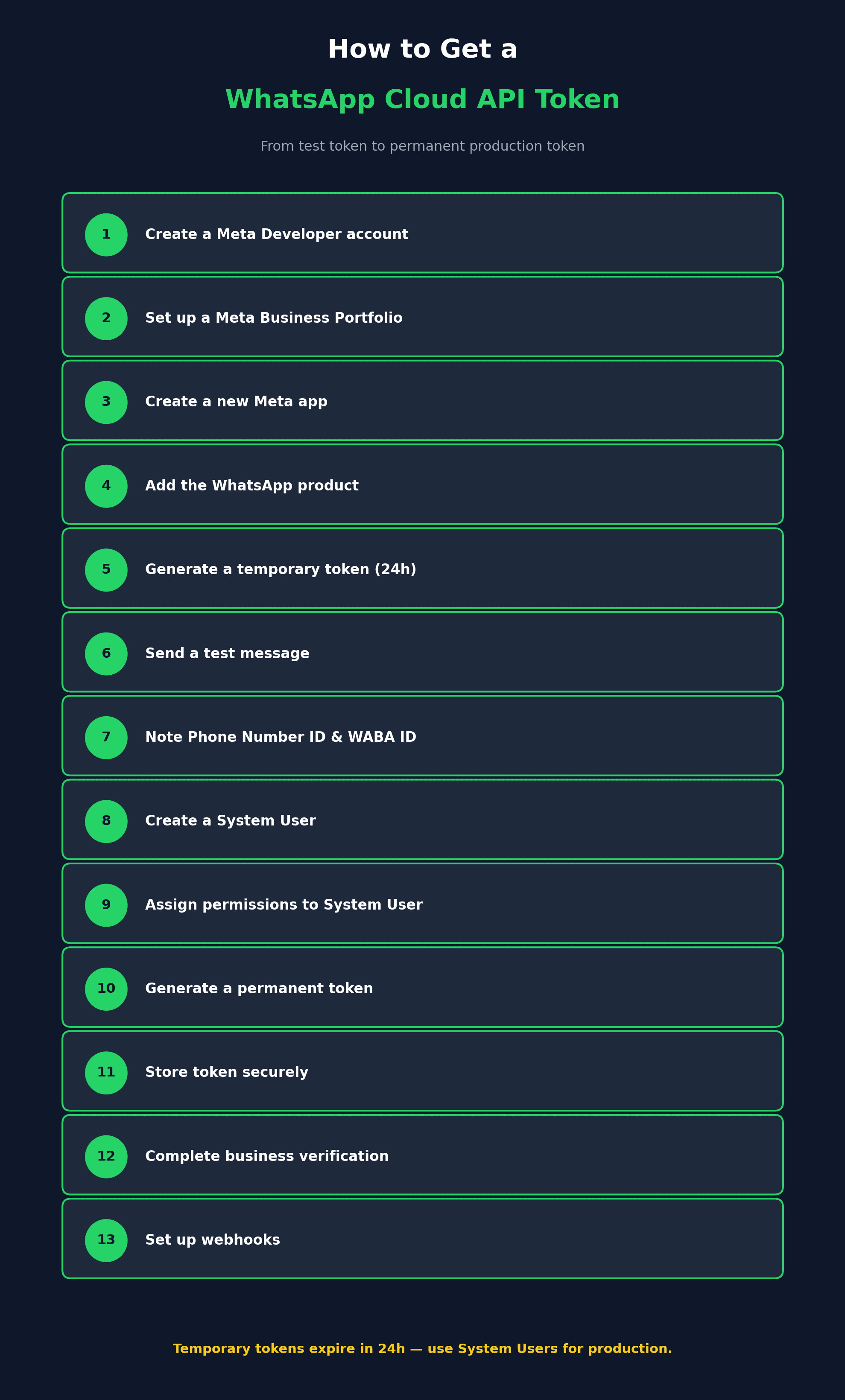
Here's a clear, step-by-step process for getting your WhatsApp Cloud API token, from initial testing to production use:
- Create a Meta Developer account: Go to developers.facebook.com, click "Get Started," and complete the sign-up process, including phone number verification.
- Set up a Meta Business Portfolio: WhatsApp messaging requires a Meta Business Portfolio (formerly Business Manager). If you don't already have one, create it at business.facebook.com with your business's legal details.
- Create a new Meta app: From your developer dashboard, select "Create App," choose the "Business" app type, and provide your app name and contact email.
- Add the WhatsApp product: Inside your app dashboard, find the products section and select "Set Up" under WhatsApp. This automatically creates a free test phone number and a WhatsApp Business Account ID (WABA ID) for you.
- Generate a temporary access token: In the WhatsApp API Setup panel, click "Generate access token." This creates a short-lived token valid for 24 hours, ideal for initial testing but not meant for production.
- Send a test message: Select a "From" test number, add your own verified number as the "To" recipient, and send a test message to confirm your setup is working. Reply to the message to open a 24-hour customer service window for further testing.
- Note your key credentials: Keep track of your Phone Number ID, WhatsApp Business Account ID, and access token, since you'll need all three for making API calls.
- Create a System User for a permanent token: Go to Meta Business Suite, navigate to Business Settings, then System Users, and click "Add" to create a new system user for your app.
- Assign permissions to the System User: Grant your new system user access to your WhatsApp app and the required permissions, such as whatsapp_business_messaging and whatsapp_business_management.
- Generate a permanent token: From the System User settings, generate a new access token tied to your system user. Unlike the temporary token, this one doesn't expire after 24 hours and is meant for use in production.
- Store your token securely: Save your permanent access token as an environment variable rather than hardcoding it into your application, and make sure it's excluded from version control.
- Complete business verification (for scaling): To move beyond the default limit of 250 conversations per 24 hours, complete Meta's business verification process by submitting official documentation, which typically takes a few business days for approval.
- Set up webhooks for incoming messages: Configure a webhook endpoint to receive notifications about message statuses and incoming replies, which is essential for building interactive, two-way messaging experiences.
Following these steps takes you from a quick test setup to a fully production-ready WhatsApp Cloud API integration.
Conclusion
Getting started with the WhatsApp Cloud API is quick for basic testing, but moving to production requires a few extra steps beyond the initial temporary token. By setting up a Meta Business Portfolio, creating a System User, and generating a permanent access token, you can build a stable, long-term WhatsApp integration for your business. Completing business verification and understanding messaging tiers will also help ensure your integration can scale smoothly as your usage grows.